Windows 용 Docker 설치 링크
https://docs.docker.com/desktop/setup/install/windows-install/
Windows
Get started with Docker for Windows. This guide covers system requirements, where to download, and instructions on how to install and update.
docs.docker.com
위 링크에서 Docker Desktop for Windows 버튼 선택해서 다운로드
다운로드 후 exe 파일 실행

OK 눌러서 설치 후 재부팅 진행
설치 완료된 Docker Desktop 실행
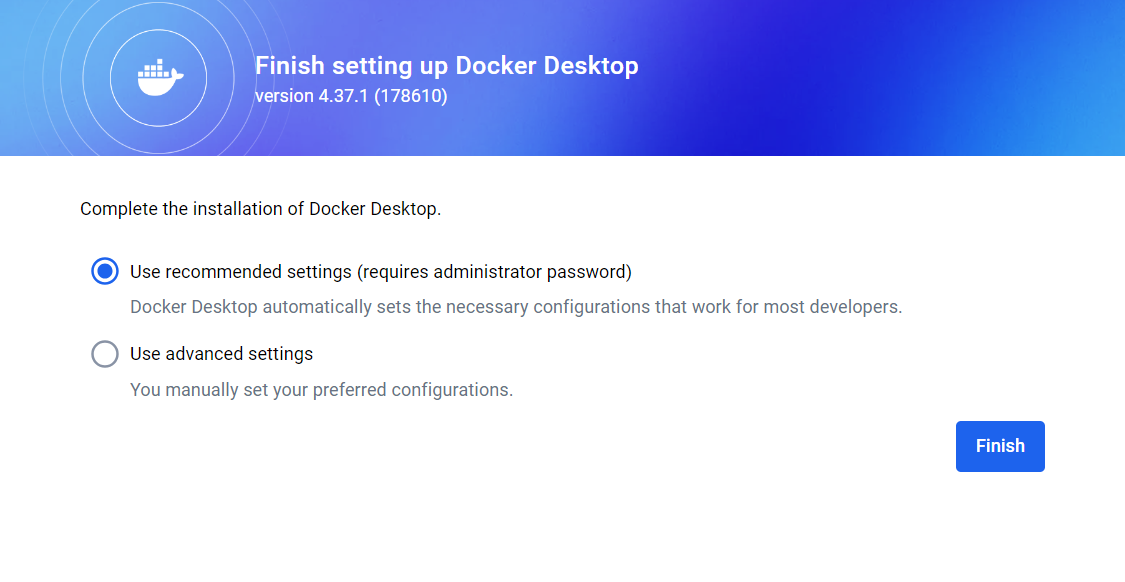
recommended settings로 선택 후 Finish 버튼 클릭
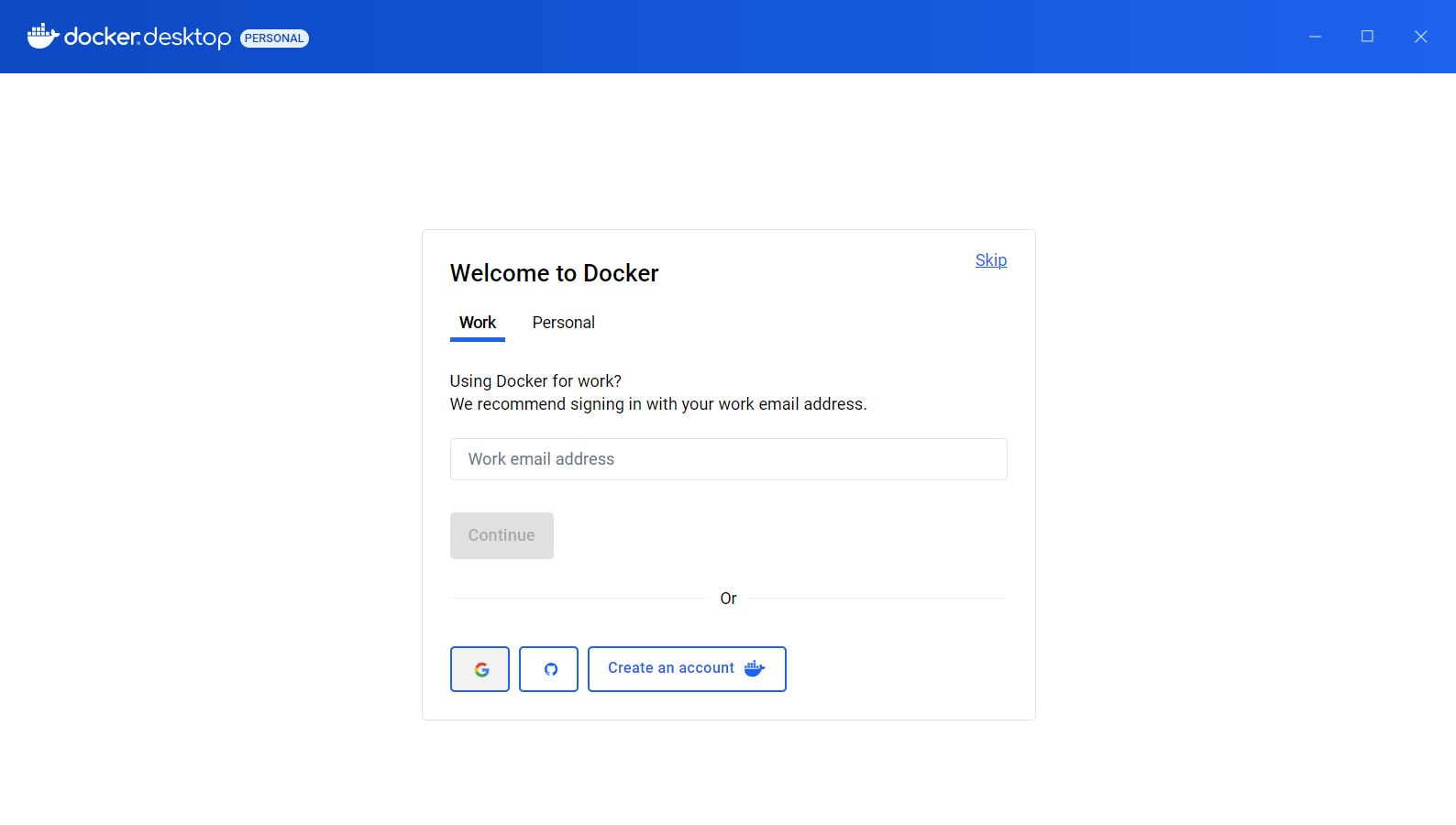
Personal (개인 계정) 선택 후 로그인하면 완료 (Docker 계정 필요)
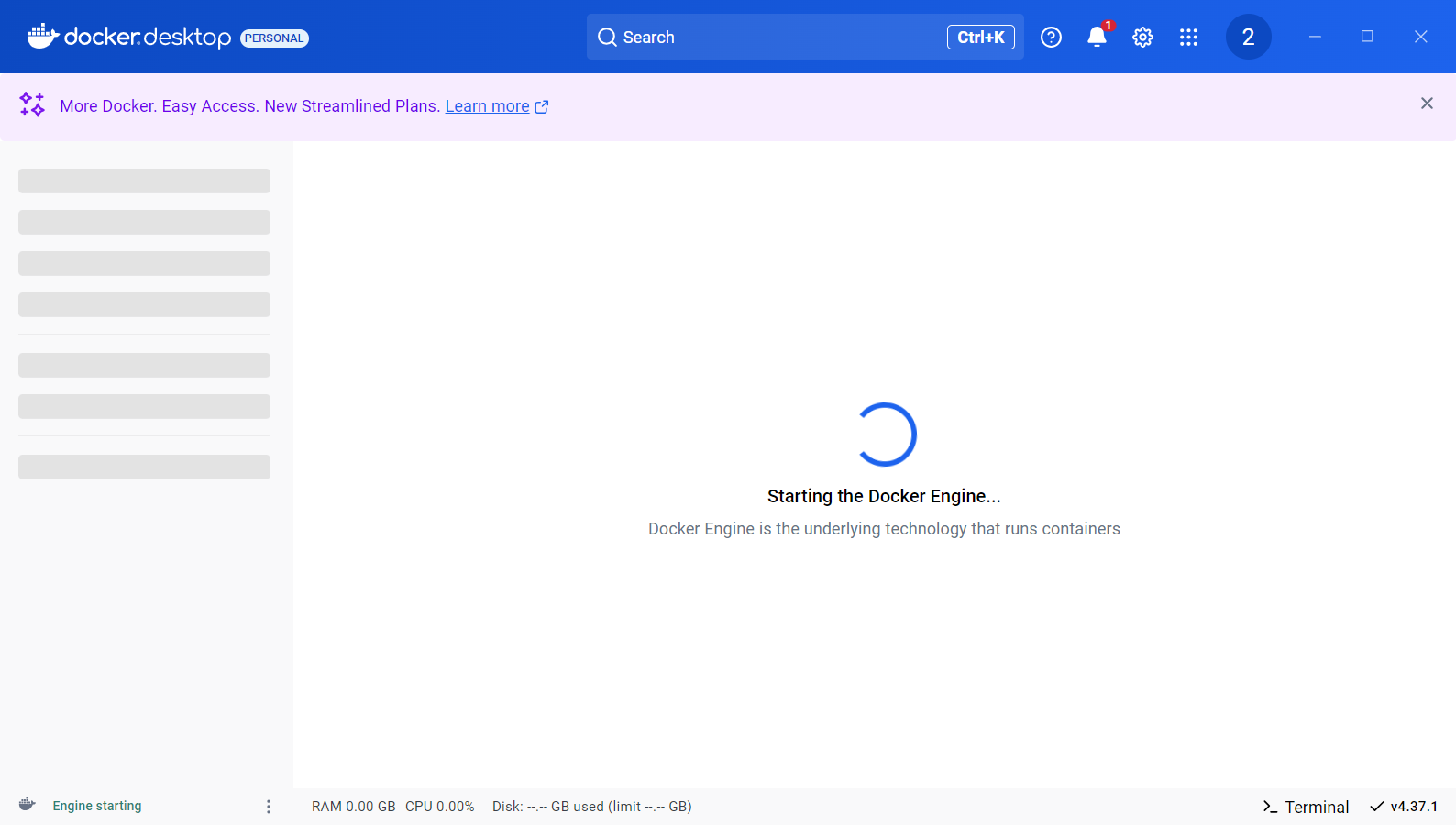
엔진 실행까지 기다렸다가 실행되면 완료
🚨 WSL 연결 오류 : Docker Desktop - Ubuntu-22.04
running wsl distro proxy in Ubuntu-22/04 distro: running proxy: exit status 1
그러나 Docker Desktop을 실행하려고 할 때마다 이런 경고창이 떴다.
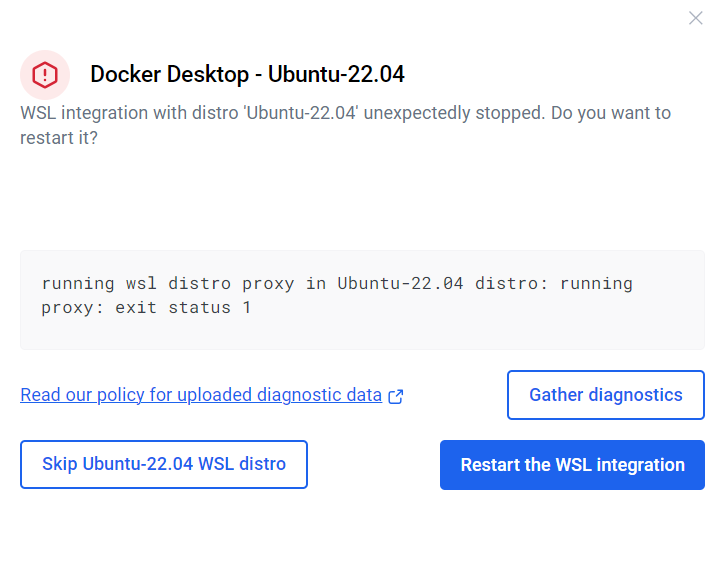
기존 WSL Ubuntu-22.04랑 연결이 안된다는 에러가 발생
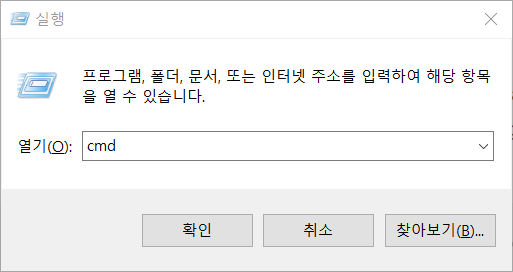
Win+R 단축키로 실행 창 연 후 cmd 실행
wsl 입력 후 엔터키를 입력하면 WSL 접속 완료
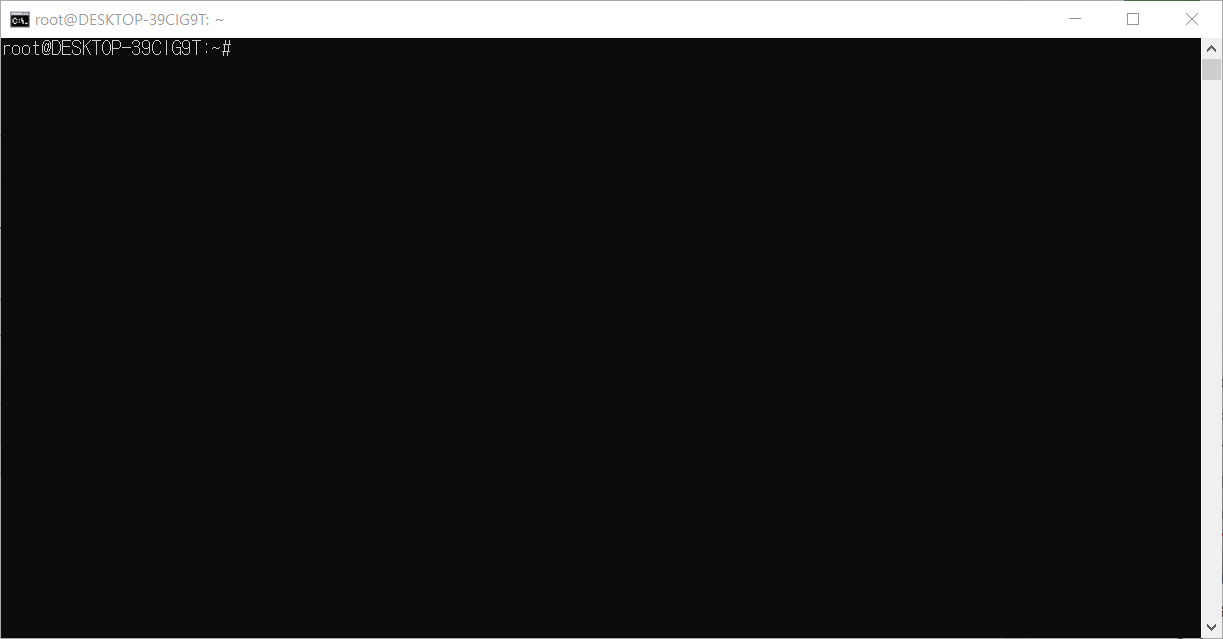
💡 방법 1: 시스템 패키지 업데이트
위 사진과 같은 WSL에 접속한 창에서
sudo apt update

sudo apt upgrade
두 명령어 실행한 후 Docker Desktop 재시작
sudo apt update : 시스템의 패키지 목록을 최신 상태로 업데이트합니다. 리포지토리(패키지를 저장하는 서버)의 패키지 정보를 가져와서 시스템에서 사용할 수 있도록 갱신합니다.
sudo apt upgrade : 설치된 모든 패키지를 최신 버전으로 업그레이드합니다. apt update로 업데이트된 패키지 목록을 바탕으로, 시스템에 설치된 패키지를 최신 버전으로 변경합니다.
그럼에도 해결되지 않아서 방법 2 진행
💡 방법 2: Ubuntu 버전 업데이트 진행
공식 문서를 참조한 방법
https://docs.docker.com/desktop/features/wsl/#enabling-docker-support-in-wsl-2-distros
WSL
Turn on the Docker WSL 2 backend and get to work using best practices, GPU support, and more in this thorough guide.
docs.docker.com
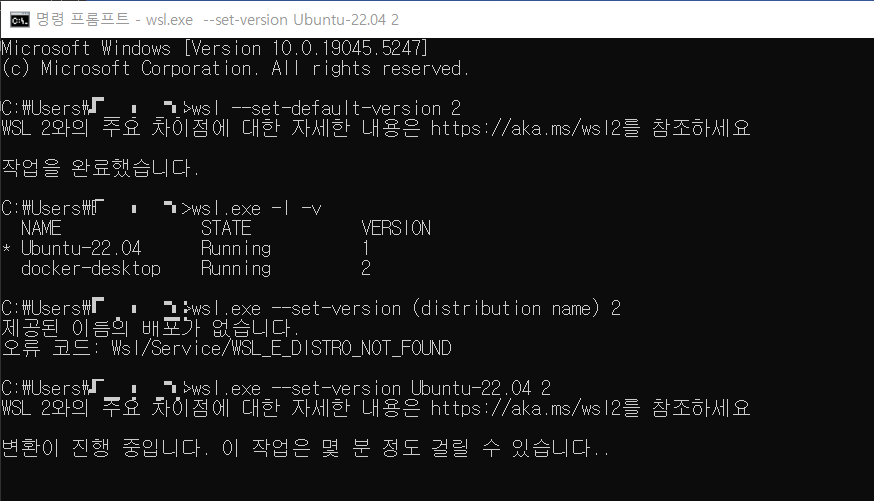
현재 Ubuntu-22.04 버전이 1이었기 때문에 생긴 문제였음을 파악
wsl.exe -l -v
위의 명령어로 설치된 리눅스 배포판의 목록과 각 배포판의 버전을 확인할 수 있음
Ubuntu의 버전 업그레이드를 위한 명령어 입력
wsl.exe --set-version Ubuntu-22.04 2
입력하면 변환 진행

작업이 완료된 후 다시 버전을 확인해보면

Ubuntu-22.04 버전이 1 에서 2로 업그레이드 된 것을 확인 가능
다시 Dokcer Desktop 실행하면 정상 작동
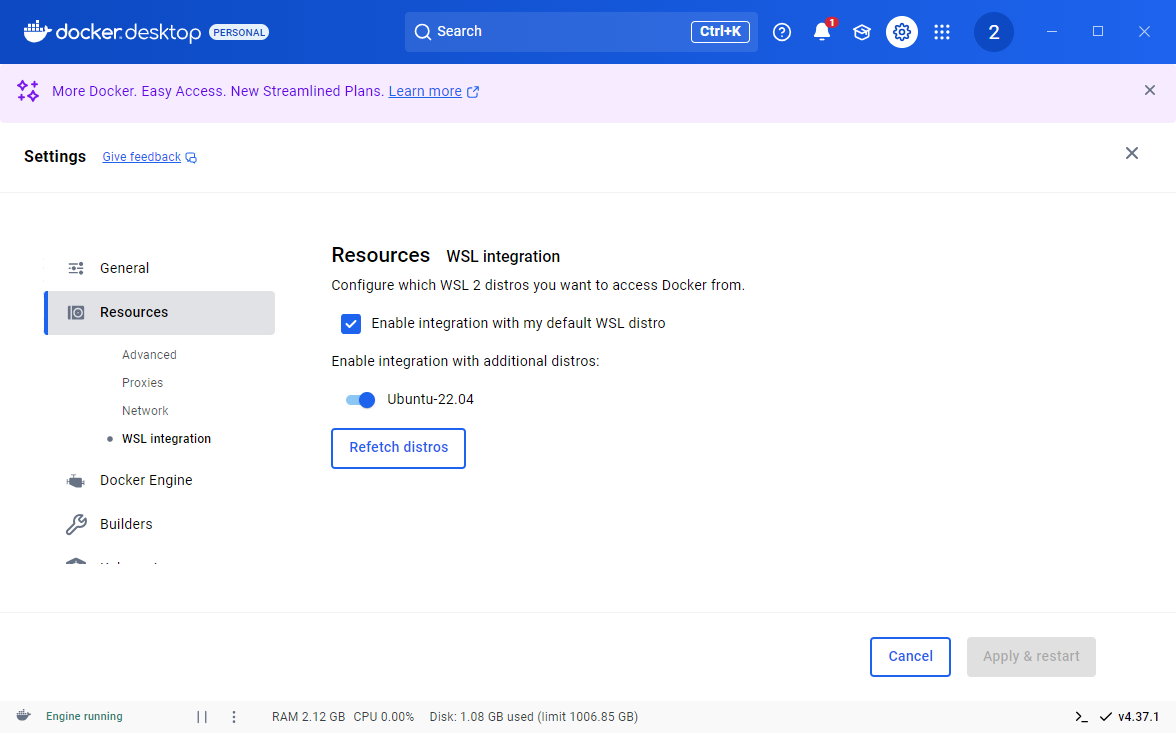
설정이 잘 켜졌으면 무사 연결 완료